


The Snipping Tool Shortcut is a quick and efficient way to capture screenshots on Windows devices. Whether you’re using Windows 10, Windows 11, or even Windows 7, knowing the right shortcut keys can save you time and effort. Many users prefer this built-in tool over third-party apps due to its simplicity and ease of use. However, some might face issues like Snipping Tool Shortcut Not Working or may need help with Snipping Tool Shortcut Download. In this guide, we will explore how to use the shortcut efficiently, troubleshoot problems, and find alternatives for Mac users.
How to Use Snipping Tool Shortcut in Windows
The Snipping Tool Shortcut is an efficient way to capture screenshots quickly without opening additional programs. Windows provides several shortcut keys for taking screenshots using the Snipping Tool. Follow these steps to use the Snipping Tool Shortcut Windows:
Step-by-Step Guide:
- Press Windows + Shift + S to activate the Snipping Tool Shortcut.
- Your screen will dim, and a small toolbar will appear at the top.
- Choose your preferred snipping mode:
- Rectangular Snip: Drag to capture a rectangular portion of your screen.
- Freeform Snip: Draw any shape to capture an area of your screen.
- Window Snip: Select an open window to capture.
- Full-Screen Snip: Capture the entire screen instantly.
- The screenshot is copied to your clipboard automatically. Open an image editor or document and press Ctrl + V to paste it.
- Alternatively, click on the preview notification that appears to edit or save the screenshot.
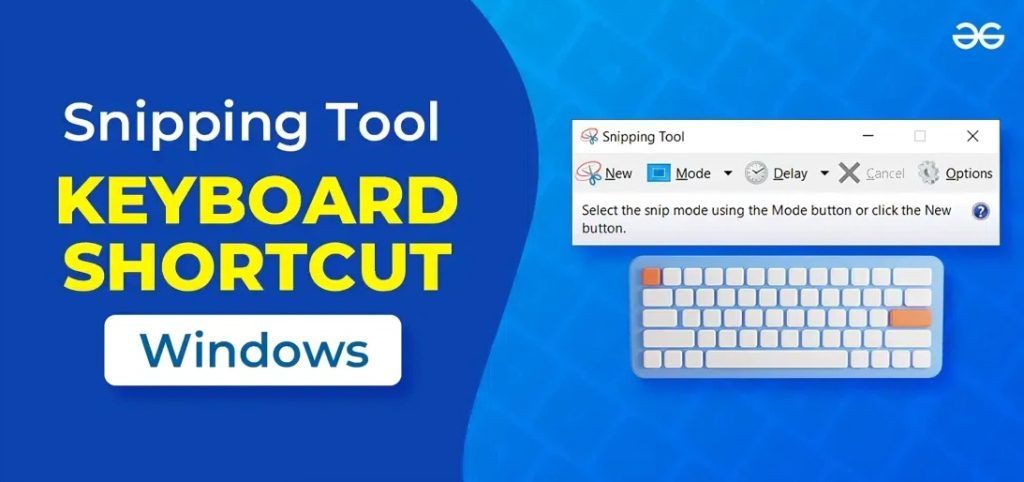
Snipping Tool Shortcut for Windows 10 & Windows 11
How to Use the Snipping Tool Shortcut Windows 10
- Open the Snipping Tool from the Start menu or use Windows + Shift + S.
- Choose a snipping mode and take a screenshot.
- The image is saved to the clipboard and can be pasted into any application.
- Click on the notification pop-up to edit and save the screenshot.
Mikayla Campinos Leaks: Shocking Details Revealed
Snipping Tool Shortcut in Windows 11
Windows 11 has improved the Snipping Tool Shortcut with better editing features:
- The Snipping Tool and Snip & Sketch have merged into one app.
- Screenshots are automatically saved in the Screenshots folder under Pictures.
- Additional annotation and cropping tools are available.
Differences Between Windows 10 and 11 Snipping Tools
FeatureWindows 10Windows 11
Shortcut Key Windows + Shift + S Windows + Shift + S
Editing Features Basic Markup Advanced Editing & Cropping
Auto Save No Yes (Screenshots Folder)
Snipping Tool Shortcut for Windows 7
Using Snipping Tool Shortcut Key Windows 7
Windows 7 users can open the Snipping Tool manually since there’s no direct shortcut like in Windows 10 and 11. Follow these steps:
- Click Start and type “Snipping Tool.”
- Select the tool and choose the snipping mode.
- Capture and save the screenshot manually.
Why Windows 7 Users Still Prefer Snipping Tool
- Lightweight and easy to use.
- No need for additional software.
- Works well on older hardware.

Snipping Tool Shortcut for Mac Users
Does the Snipping Tool Shortcut Mac Exist?
No, Mac does not have a Snipping Tool Shortcut like Windows. However, there are built-in alternatives:
Best Mac Alternatives for Snipping Tool
- Command + Shift + 4: Capture a selected portion of the screen.
- Command + Shift + 3: Capture the entire screen.
- Command + Shift + 5: Open the screenshot toolbar for advanced options.
Essential Snipping Tool Shortcut Keys
The Snipping Tool remains a favorite among Windows users, and knowing its shortcut keys can save valuable time. One of the oldest and most reliable is the Print Screen (PrtScn) key, which captures the entire screen instantly. However, in 2025, the most commonly used is Windows + Shift + S, which opens the Snipping Tool’s snip menu.
This allows you to choose between rectangular, free-form, window, or full-screen captures with just a few clicks. For those who multitask, combinations like Alt + PrtScn (active window capture) are also handy. These shortcuts eliminate the need to manually search for the app, making the process faster and more efficient.
By mastering these keys, users can streamline tasks, improve workflow, and avoid missing critical on-screen moments—especially useful for professionals, students, and gamers who frequently need quick screenshots.
Advanced Features with Shortcut Keys
Beyond the basics, the Snipping Tool in 2025 offers advanced features that are fully accessible through shortcuts. For instance, delayed snips allow you to capture menus or hover-over tooltips by setting a timer before the screenshot is taken.
Shortcut access makes this smoother than navigating through menus. Editing is also faster—once a snip is taken, quick commands help you annotate, crop, or highlight without switching to another program. Sharing is simplified too, as captured snips can be copied directly to the clipboard with Ctrl + C or saved instantly with Ctrl + S.
You can even paste screenshots into apps like Word, Teams, or email using Ctrl + V. These keyboard-focused features save steps, increase speed, and make the Snipping Tool more than just a screenshot app—it becomes a real productivity booster for daily use.
Fixing Snipping Tool Shortcut Not Working Issue
Common Problems with Snipping Tool Shortcuts Not Working
- Shortcut keys are disabled.
- Another program is interfering.
- Windows updates causing glitches.
How to Fix Snipping Tool Shortcut Key Issues
- Restart your computer and try again.
- Check for Windows updates and install pending updates.
- Open Settings > Accessibility > Keyboard > Enable Use the Print Screen Key for Snipping Tool.
How to Download and Install Snipping Tool
Where to Find the Snipping Tool Shortcut Download
- The Snipping Tool is pre-installed in Windows. If missing, download it from the Microsoft Store.
Steps to Install Snipping Tool
- Open the Microsoft Store and search for Snipping Tool.
- Click Install and wait for the process to complete.
- Once installed, use Windows + Shift + S to access it.
Can-Am Defender – The Ultimate Off-Road UTV for Any Task

Snipping Tool Shortcut Keys for Faster Screenshots
Full List of Snipping Tool Shortcut Key Combinations
- Windows + Shift + S: Open Snipping Tool.
- Ctrl + PrtScn: Capture full screen.
- Alt + N: Create a new snip.
- Ctrl + S: Save the snip.
How to Customize Shortcut Keys for Windows 10 & 11
- Go to Settings > Accessibility > Keyboard.
- Enable Use the Print Screen Key for the Snipping Tool.
Advanced Snipping Tool Features
How to Edit and Annotate Screenshots
- Use the built-in pencil, highlighter, and eraser tools.
- Crop and resize screenshots.
Tips for Saving and Sharing Snipped Images
- Save in JPEG, PNG, or GIF format.
- Use Ctrl + V to paste into emails or documents.
Snipping Tool vs. Snip & Sketch in 2025
As Microsoft continues to refine its tools, many users wonder whether to use Snipping Tool or Snip & Sketch. Both have overlapping functions, but their shortcut usage differs. The Snipping Tool supports traditional combinations like Windows + Shift + S, while Snip & Sketch offers extended editing features and direct markup capabilities.
Microsoft has been shifting its focus toward Snip & Sketch, integrating it more deeply with Windows 11 and upcoming Windows 12. This is why you’ll notice quicker editing and sharing options there. However, for efficiency, the Snipping Tool remains faster for simple captures and remains familiar to long-time users.
Professionals may prefer Snip & Sketch for its advanced editing, while students or casual users might stick with the Snipping Tool. Understanding these differences in shortcuts ensures you pick the right tool for your specific workflow needs in 2025.
Tips for Maximizing Productivity
To get the most out of the Snipping Tool in 2025, users can go beyond default shortcuts. One powerful trick is customizing shortcut keys, assigning them to functions you use most frequently. For example, you can re-map the Snipping Tool to open with a single keystroke, reducing clicks.
Integration with third-party apps like OneNote, Photoshop, or Slack also improves workflow by allowing instant pasting and editing. For professionals, setting a delay before capture helps document complex software steps, while students can use annotation shortcuts to highlight notes in seconds.
Another best practice is saving frequently used snips in organized folders, accessible with Ctrl + S. By combining these strategies, the Snipping Tool transforms from a simple screenshot utility into a professional-grade productivity tool, ideal for anyone who values speed, clarity, and efficiency in their daily digital tasks.
Best Alternatives to Snipping Tool
Other Tools That Work Like Snipping Tool Shortcut
- Greenshot: Free and open-source.
- Lightshot: Quick editing options.
- ShareX: Advanced screen capture features.
Pros and Cons of Built-in and Third-Party Screenshot Tools
Tool Pros Cons
Snipping Tool Built-in, Free Basic features
Lightshot Fast, Free No advanced editing
ShareX’s Highly customizable Learning curve

Frequently Asked Questions about Snipping Tool Shortcut
What is the Snipping Tool Shortcut Key Windows 10?
Use Windows + Shift + S to capture screenshots.
How to Fix Snipping Tool Shortcut Not Working?
Check for Windows updates and restart your system.
Can I Use Snipping Tool Shortcut Windows 7 in Newer Versions?
Yes, but Windows 10 and 11 have a more advanced version.
How to Customize Snipping Tool Shortcut Windows Settings?
Enable the Print Screen Key option in Accessibility Settings.
Is There a Snipping Tool Shortcut Mac Alternative?
Yes, use Command + Shift + 4 or Command + Shift + 5.
Conclusion of Snipping Tool Shortcut
Mastering the Snipping Tool Shortcut can significantly improve your workflow by making screenshot capturing quick and effortless. Whether you’re using Snipping Tool Shortcut Windows 10, Windows 11, or even Windows 7, knowing the right commands helps you work faster.
If you face any issues, troubleshooting methods can resolve common problems like the Snipping Tool Shortcut Not Working. Additionally, Mac users can explore alternative methods since there is no dedicated Snipping Tool Shortcut Mac option.
For those who don’t have the tool installed, the Snipping Tool Shortcut Download option is always available. By utilizing these features, you can enhance your productivity and make screenshot capturing more seamless than ever.
