


Windows File Recovery: Complete Guide to Restore Deleted Files
You delete an important document on your Windows 10 PC and realize it’s no longer in the Recycle Bin. That moment of panic is common, especially when valuable files seem permanently gone. Windows File Recovery is a built-in Microsoft tool designed to help restore deleted files in Windows 10 directly from storage drives.
It works through a command-line interface and supports multiple file systems, making it suitable for different data loss situations. With the right commands and prompt action, users can scan drives and recover lost content effectively. This article introduces Windows File Recovery, explaining what it is, how it works, and when it can be used.
Part 1. Understand the Windows File Recovery App and How It Works
Part 2. Step‑by‑Step Windows File Recovery Command Guide – Setup
Part 3. Scenarios to Recover Several Lost Files at Once on Windows File Recovery
Part 4. Recoverit Leads the Way: Reliable Recovery for All Your Files
Conclusion
Part 1. Understand the Windows File Recovery App and How It Works
Windows File Recovery is a free Microsoft command-line tool for recovering deleted files in Windows 10. It supports NTFS, FAT, exFAT, and ReFS file systems. The tool runs in the command line, and users enter commands to scan storage drives. Different recovery modes handle various file loss situations. Recovered files are saved to a separate destination drive.
Key Features Offered by Windows File Recovery
- Regular Mode: Provides a standard recovery option for recently deleted files on healthy NTFS drives.
- Extensive Mode: Performs deep scans to recover files from formatted, damaged, or older deletions across all supported systems.
- Filter Searches with Switches: Allows targeted recovery by specifying file names, paths, types, or wildcards.
- Segment and Signature Options: Offers advanced recovery methods using file record segments or file headers for thorough file detection.
- Separate Destination Drive Requirement: Forces recovered files to be saved to a different drive to prevent overwriting lost data.
Part 2. Step‑by‑Step Windows File Recovery Command Guide – Setup
After learning about what Windows File Recovery is, let us have a look at the steps for recovering lost or deleted files using this tool:
Step 1. Begin by accessing the tool in the Microsoft Store and downloading it if it hasn’t already. Once done, press the “Open” button to launch the Command Line on your device.
Step 2. Enter the recovery command using the format: “winfr source-drive: destination-drive: /mode /switches.” Choose Regular or Extensive mode based on your file loss situation.
Step 3. Next, press the “Y” key when the tool asks for confirmation to begin the scanning process.
Step 4. Wait for the process to complete, then check the destination drive for recovered files.
Part 3. Scenarios to Recover Several Lost Files at Once on Windows File Recovery
Different data loss situations require different recovery approaches. Windows File Recovery supports multiple scenarios, allowing users to retrieve several files simultaneously using targeted commands. Below are common recovery scenarios and how the tool restores deleted files on Windows 10 effectively:
1. Get Back Recently Deleted Files from NTFS Drives
Recently deleted files on NTFS drives are often still recoverable if the space has not been reused. Windows File Recovery uses Regular mode to scan file records and restore intact data efficiently. This method works best when recovery is attempted quickly after deletion. To recover files in this case, run the following command:
“winfr H: D:\test /regular.”
2. Recover Files from a Drive That Was Formatted or Damaged
Formatted or damaged drives require a deeper scan to locate file traces. Extensive mode analyzes disk segments and file signatures to recover deleted files on Windows 10 across supported file systems. This process may take longer, but it improves recovery chances in severe data loss situations. For this situation, type the Extensive mode recovery command:
“winfr H: D:\test /extensive.“
3. Restore Specific File Types Like TXT, Excel, PDF, DOCX, JPG
When only certain file types are needed, Windows File Recovery allows filtering by extensions. This helps reduce scan time and avoids unnecessary results. Users can target documents, images, or spreadsheets in one recovery session using switches. In this scenario, use a file-type–specific command to retrieve only the required formats:
“winfr H: D:\test /extensive /n *.txt”
4. Recover Files from a Specific Folder
If files were lost from a known folder location, Windows File Recovery can scan that exact path. This focused recovery method avoids scanning the entire drive and improves accuracy. Folder-based recovery is useful for organized data loss scenarios. To handle this case, enter a command that includes the exact folder path in Windows File Recovery:
“winfr H: D:\test /regular/n /ImportantFolder”
Windows File Recovery Limits: What Users Need to Be Aware Of
While Windows File Recovery is useful, it has limitations that users should understand before restoring deleted files for Windows 10.
- No Graphical Interface: The tool operates entirely through Command Prompt, making it difficult for beginners to navigate.
- Limited Success on Overwritten Data: Files that have been overwritten by new data are rarely recoverable.
- Basic Preview Capabilities: Users cannot preview files before restoring them, which may lead to unnecessary recoveries.
- No Selective Folder Browsing: Visual selection of specific folders is not possible; recovery relies on typed commands.
- Separate Drive Requirement: Recovered files must be saved to a different drive to prevent accidental overwriting.
Part 4. Recoverit Leads the Way: Reliable Recovery for All Your Files
When built-in recovery options reach their limits, a more advanced solution becomes essential. Recoverit steps in as a professional data recovery tool designed to handle complex file loss situations with greater efficiency. It supports recovery from internal drives, external storage devices, memory cards, and cameras, offering a streamlined experience through an intuitive interface.
Users can scan, preview, and recover deleted files in Windows 10 in a few clicks without technical commands. Recoverit adapts to various loss scenarios, helping users regain access to important data with minimal effort while maintaining file integrity throughout the recovery process.
Coherent Features Offered By Recoverit
- Batch Data Recovery: Recoverit data recovery tool allows users to restore multiple files simultaneously, reducing time and effort during large-scale data recovery tasks.
- Advanced Recovery Mode: The advanced recovery mode performs deep scans to locate files lost due to formatting, corruption, or system crashes.
- Multiple File Formats Support: It supports recovery of documents, images, videos, audio files, and archives across more than 1000 file formats.
Comprehensive Steps to Recover Files With Recoverit
As discussed, Recoverit offers a high-quality data recovery in no time. Provided next is the step-by-step guide on how to recover data through it:
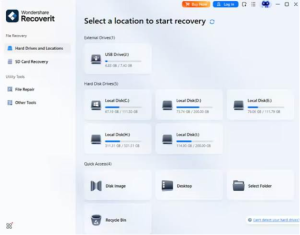
Step 1. Select the Recovery Location
Open Recoverit and choose the drive, folder, or external device where the files were lost or damaged. The software immediately starts scanning the selected location, and you can pause or stop the scan whenever needed.
Step 2. Find and Pick Files
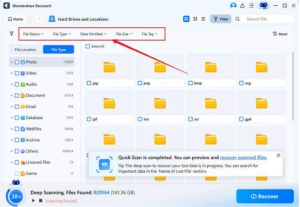
When the scan completes, Recoverit displays all detected files in an organized list. Navigate through the results, filter by file type if necessary, and mark the items you want to recover. Press the “Recover” button to execute the recovery process.
Step 3. Verify and Save Files
Preview the selected files to confirm they are intact. After verification, complete the process by saving them to a different, secure storage location using the “Recover” button.

Conclusion
To wrap it up, this article provided a complete guide to what the Windows File Recovery tool is and how recover deleted files on Windows 10. The article provided an in-depth review of the tool along with its features. However, if you want to surpass the limitations of this tool when recovering data, you can use Recoverit. This advanced data recovery tool allows users to get back their important lost and damaged files in no time.
