

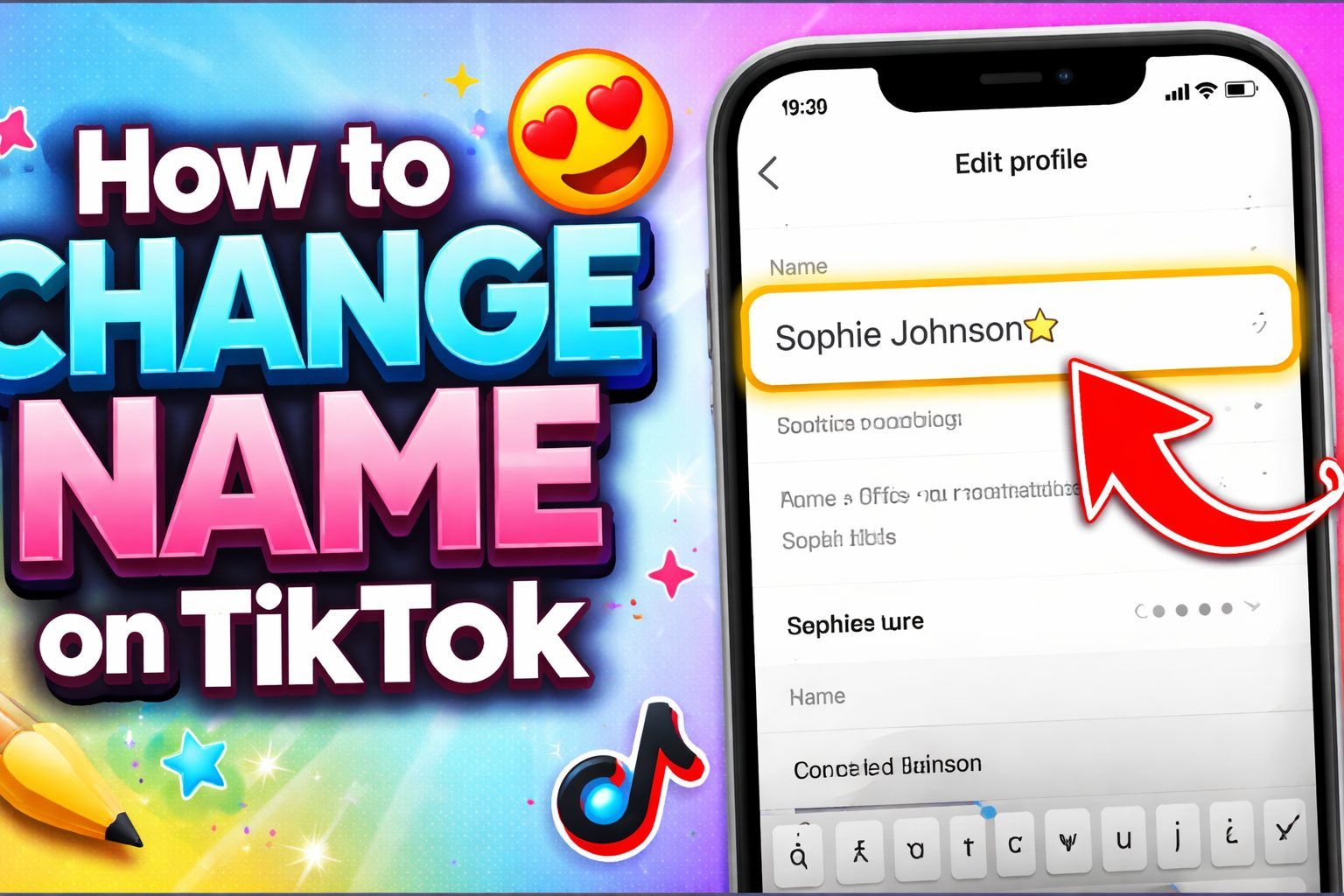
How to Change Name on TikTok is a common query for users who want to refresh their profile or improve branding. Whether you are updating your personal account, business profile, or TikTok Shop, knowing the correct steps ensures a smooth process. TikTok allows display name changes anytime, while usernames can be updated once every 30 days.
This guide will walk you through all methods, including on iPhone, PC, TikTok Lite, and Seller Center accounts.
By understanding rules, avoiding mistakes, and using creative approaches like emojis, you can maintain a recognizable identity, boost visibility, and keep followers engaged across all types of TikTok profiles.
Step-by-step guide: how to change your name on a TikTok account
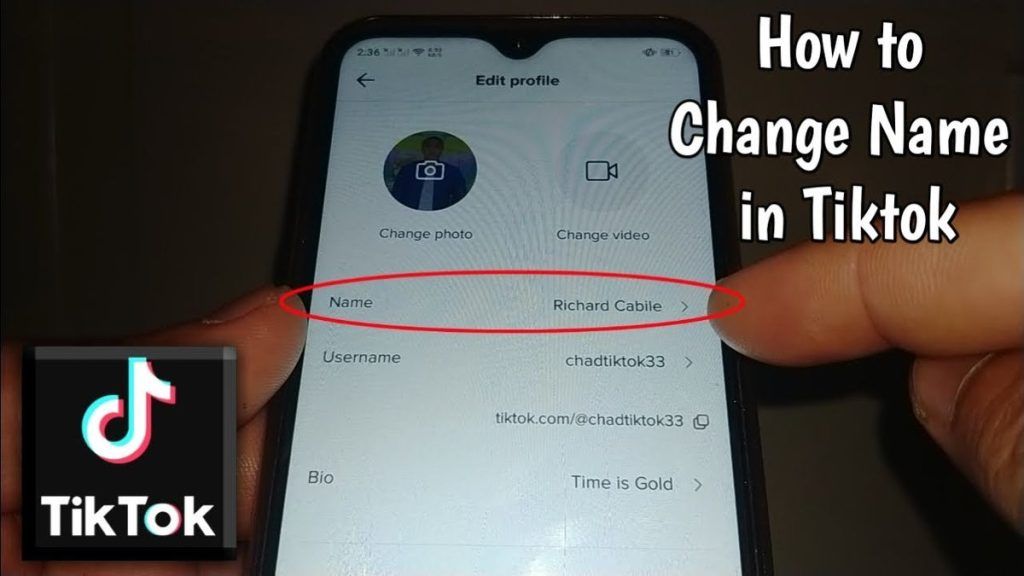
Changing your TikTok name is simple when you follow a clear process. First, open TikTok and navigate to your Profile. Tap Edit profile, then select Name or Username depending on what you want to update. Enter your desired name and make sure it’s unique and easy to remember. Confirm the changes by tapping Save.
If you’re updating your account name, ensure it aligns with your branding or personal style. Remember, TikTok only allows username changes once every 30 days, so plan carefully. Using the right combination of letters, numbers, or emojis can make your profile stand out.
By following this guide on how to Change Name on TikTok, you can maintain a professional or creative identity while ensuring followers can still recognize you easily.

Common mistakes to avoid when changing your name on your TikTok profile
When updating your TikTok profile name, beginners often make simple mistakes. A common error is using prohibited characters or overly long names, which TikTok rejects. Another mistake is changing your name too frequently, as TikTok enforces a 30-day restriction.
Avoid names that are hard to spell or remember, which can confuse your followers. Forgetting to check if your desired username is available is another frequent issue. Also, using inappropriate words can lead to account restrictions.
To ensure smooth updates, always review TikTok guidelines. By carefully avoiding these pitfalls while following How to Change Name on TikTok, especially for your profile, you can maintain a consistent, recognizable identity. This prevents issues with visibility and ensures a professional or personal branding remains intact.
How to change your TikTok name on PC: full tutorial
Many TikTok users prefer managing accounts from a PC. To change your TikTok name on a computer, log in via TikTok’s official website. Navigate to your Profile, click Edit profile, and select Username or Name. Enter the new name carefully, ensuring it follows TikTok rules.
Avoid special symbols not allowed on PC. Confirm by clicking Save. Using a PC is especially useful for business accounts or creators managing multiple profiles.
Whether updating a personal account or business account, knowing how to change your name efficiently from a desktop ensures you save time. Following this tutorial on How to Change Name on TikTok allows users to maintain brand consistency across all devices, including PC.
Tips for updating your TikTok name before 7 days: how to change name on TikTok before 7 days
TikTok usually limits username changes to once every 30 days, but some users want to update sooner. While you cannot bypass this restriction officially, planning can help. For urgent changes, consider modifying your display name, which can be updated anytime.
Ensure your new name aligns with your content or branding. Avoid frequent attempts, as repeated changes may confuse followers. By understanding how to change your name on TikTok within 7 days, you can strategize your updates effectively.
Using creative combinations of letters, numbers, or emojis can maintain visibility without violating TikTok rules. Proper planning ensures a smooth transition, keeping your profile recognizable and avoiding conflicts with TikTok’s name change policy.
How to change your name on TikTok using an iPhone device
Changing your TikTok name on an iPhone is straightforward. Open the TikTok app and tap Profile at the bottom-right corner. Click Edit profile, then select Name or Username. Type your new name carefully, ensuring it’s within the character limit.
Tap Save to confirm changes. For iPhone users, it’s important to update to the latest TikTok version to avoid glitches. Using your iPhone also allows you to preview how your name appears on your profile.
Following these steps on How to Change Name on TikTok ensures you maintain a clean, recognizable profile on mobile. It’s perfect for creators who manage their accounts primarily on mobile devices.
Guide for TikTok Lite users: how to change name on TikTok Lite
TikTok Lite is designed for low-storage devices, but the name-changing process is similar. Open TikTok Lite, tap Profile, and select Edit profile. Choose Name or Username, then enter your desired new name. Ensure the name follows TikTok’s rules and is easy to remember.
Lite users may notice fewer customization options, but the update works effectively. This guide on How to Change Name on TikTok for Lite ensures you can maintain a consistent identity even on limited devices.
Always save changes and refresh your profile to check the update. Whether personal or business, knowing how to change your name on TikTok Lite keeps your account professional and user-friendly.
Changing name on your TikTok Shop account: how to change name on TikTok Shop
For sellers on TikTok Shop, updating your name is essential for branding. Open the TikTok app, go to Profile, then tap Edit profile. Select Name and enter a name reflecting your shop or product identity. This is critical for building recognition and trust with customers.
Avoid frequent changes to prevent confusion. By following How to Change Name on TikTok, you can keep your shop profile professional and easy to find.
Ensuring the new name is clear, concise, and memorable strengthens your online presence. Using the keyword how to change name on TikTok shop helps creators targeting commerce users maintain consistency across TikTok and other sales channels.
Steps for TikTok Shop Seller Center: how to change name on tiktok shop seller center
TikTok Shop Seller Center users can also update names for account visibility. Log in to your Seller Center, navigate to Profile settings, and choose Edit name. Enter your new shop or business name carefully, then save. Ensure it represents your products well and is compliant with TikTok guidelines.
Changing your name strategically can improve discoverability and customer engagement. Following How to Change Name on TikTok for sellers ensures a professional, unified presence.
The keyword how to change name on TikTok shop seller center emphasizes the business-focused aspect, helping shop owners maintain clear branding while keeping their account professional and easy to recognize for buyers.
Updating your name in TikTok Seller Center: a beginner-friendly guide
For beginners, updating your name in TikTok Seller Center might seem tricky. Access your account, navigate to Settings, then tap Edit profile. Input your new name carefully, ensuring it reflects your brand and complies with TikTok rules.
Avoid changing frequently to maintain consistency. A clear, easy-to-read name helps customers recognize your products and trust your shop. By following this beginner-friendly guide on how to Change Name on TikTok, new sellers can confidently update their profiles.
Keeping the TikTok Seller Center name professional and memorable is essential for brand growth, visibility, and credibility on the platform.
How to change the name on a TikTok business account without losing followers
Business accounts require careful name updates to prevent follower confusion. Open TikTok, go to Profile, then tap Edit profile. Update your Name or Username, keeping it relevant to your brand. Communicate the change in posts or bio to inform followers. Avoid drastic changes that may affect recognition.
By following How to Change Name on TikTok for a business account, you maintain engagement while improving branding. Consistency with other social media handles strengthens your professional identity.
Whether updating for seasonal campaigns or rebranding, a strategic approach ensures your TikTok business account stays credible and follower-friendly.
Using emojis and special characters when changing your TikTok name
Emojis and special characters can make your profile name unique and memorable. When updating your Name, choose symbols that align with your personality or brand. TikTok allows certain emojis, but avoid overuse or inappropriate ones.
A well-placed emoji can make your account stand out in search results. Following How to Change Name on TikTok while strategically using emojis can increase engagement. This works for personal, shop, or business accounts, helping users differentiate their profiles.
Incorporating creative symbols while updating names, like how to change a name on a TikTok account, enhances visibility, aesthetic appeal, and overall user experience.

How to create a unique TikTok username while changing the name on the TikTok account
Choosing a unique username is critical for identity and searchability. When changing the name on a TikTok account, select a combination of letters, numbers, or relevant emojis. Avoid generic names to prevent confusion. Check availability before finalizing.
Unique usernames improve discoverability and branding. By following How to Change Name on TikTok, you can create a memorable identity that reflects your niche, content style, or business.
A good username complements your display name and helps followers find you easily. Strategic updates ensure your profile is professional, engaging, and aligned with your overall TikTok presence.
Emoji TikTok Meme: The Viral Trend Everyone Is Talking About
Fixing errors when TikTok doesn’t allow name changes
Occasionally, TikTok may prevent name changes due to account restrictions, policy violations, or frequent updates. First, check if you’ve already changed your username within the last 30 days. Ensure your new name doesn’t contain invalid characters.
Updating the app or clearing the cache can resolve technical issues. Following the steps on ” How to Change Name on TikTok while troubleshooting ensures successful updates. If problems persist, contacting TikTok support is recommended.
Properly fixing errors avoids frustration and maintains a consistent profile. This approach works for personal, business, or shop accounts, ensuring your profile remains professional, visible, and accessible to followers.
How often can you update your TikTok name: rules for 2025
TikTok allows username changes once every 30 days, while display names can be updated anytime. Frequent changes to usernames are restricted to maintain account stability and avoid confusion.
Understanding these rules is critical when following How to Change Name on TikTok. Business, personal, or shop accounts must plan updates strategically. For display names, users have more flexibility, but consistency is key for branding.
By knowing the 2025 rules, you can plan effective updates without violating TikTok policies. This ensures your profile remains recognizable, professional, and user-friendly, while followers easily identify your content or shop.
Boosting profile visibility after changing name on TikTok shop or personal account
After changing your name, it’s essential to boost visibility. Update your bio, post announcements, and engage with followers to reduce confusion. Consistent branding across TikTok Shop or personal accounts ensures discoverability. Using hashtags and linking to other social media can further strengthen reach.
Following How to Change Name on TikTok while optimizing your profile improves searchability and credibility. This helps your content or shop remain visible, preventing loss of engagement.
Strategic updates after changing names ensure followers can easily recognize and interact with your profile, maintaining your growth momentum on TikTok.
Using third-party tools safely while changing your name on TikTok Lite
Some users consider third-party apps for managing TikTok profiles. While TikTok Lite is lightweight, third-party tools can help schedule posts or track analytics, but avoid apps promising instant name changes. These can compromise security.
Following How to Change Name on TikTok directly in the app is safest. For Lite users, this ensures name updates are smooth and compliant. Always verify the authenticity of tools, read reviews, and avoid sharing sensitive login info.
Safe practices maintain account security, prevent hacks, and ensure your TikTok Lite profile remains professional and recognizable while updating names efficiently.
How to revert if you made a mistake while changing the name on the TikTok seller center
Mistakes happen when updating names in TikTok Seller Center. If your new name doesn’t fit the branding or causes confusion, you may need to wait 30 days to revert usernames. For display names, you can immediately edit them. Always double-check before saving updates.
By following How to Change Name on TikTok, you can minimize errors and know how to correct them safely. Planning names strategically and keeping backup versions ensures smooth updates for your shop or business account.
This approach maintains professionalism, prevents customer confusion, and ensures your TikTok Seller Center profile remains credible and easy to find.
Secret Emoji Code: Unlock Every Hidden Emoji Instantly
Fun Facts about How to Change Name on TikTok
- TikTok allows display name changes unlimited times, but usernames are limited to once every 30 days.
- You can add emojis or special characters to make your display name unique.
- Changing your TikTok name strategically can boost profile visibility and discoverability.
- TikTok Lite users have the same name-changing options as regular app users.
- Business and Shop accounts benefit from name updates to enhance branding and trust with followers.
Frequently Asked Questions about How to Change Name on TikTok
How often can I change my TikTok username?
TikTok allows username changes once every 30 days, but display names can be updated anytime.
Can I use emojis when changing my TikTok name?
Yes, TikTok supports many emojis in display names, but usernames have limited symbols.
How do I change my TikTok name on PC?
Log in to TikTok’s website, go to Profile → Edit profile, and update your Name or Username.
What if TikTok doesn’t let me change my name?
Ensure you haven’t changed your username in the past 30 days and avoid invalid characters.
Can I change my TikTok Shop or business account name?
Yes, use Edit profile in your Shop or business account, following TikTok’s guidelines to maintain branding.
Conclusion of Change Name on TikTok
Updating your TikTok profile name is a simple yet impactful way to refresh your account and strengthen your online presence. By following How to Change Name on TikTok, users can update personal accounts, business profiles, TikTok Shop, or Seller Center accounts safely and efficiently.
Remember to avoid common mistakes, follow TikTok’s guidelines, and plan changes carefully to maintain follower recognition. Using creative touches like emojis and clear branding can improve engagement and visibility.
Whether on iPhone, PC, or TikTok Lite, this guide ensures you can change your name without errors. Consistency, strategic updates, and understanding TikTok’s rules will help you maintain a professional and recognizable profile for 2025 and beyond.
