



Configuring a DMARC record is one of the most effective ways to protect your domain from email spoofing, phishing attacks, and unauthorized email use. However, creating a valid DMARC policy can be challenging without a clear understanding of the required tags and settings. This guide explains how a simple DMARC record generator can help you quickly create, publish, and manage a DMARC policy tailored to your organization’s needs. From understanding essential DMARC tags and selecting the right enforcement policy to publishing, testing, and monitoring your record, you’ll learn everything needed to strengthen email authentication, improve email deliverability, and gain valuable visibility through DMARC reporting.
What a DMARC Record Is and Why Your Domain Needs One
A DMARC record is a DNS TXT record that instructs email receivers (like Gmail and Yahoo) on how to handle email that fails authentication checks for your domain. DMARC, which stands for Domain-based Message Authentication, Reporting, and Conformance, helps to protect your domain from email spoofing and phishing attacks by enabling strict controls and comprehensive reporting.
When implemented, a DMARC record tells receiving mail servers how to enforce your domain’s email authentication checks, specifically SPF (Sender Policy Framework) and DKIM (DomainKeys Identified Mail). Without a DMARC policy, malicious actors could forge emails ostensibly from your domain, putting your brand reputation and customer trust at risk. Strong DMARC deployment, guided by robust DMARC policies, not only reduces risk but also enables visibility through DMARC reporting—delivering aggregate reports and failure reports directly to the addresses you specify.
Establishing DMARC compliance is now an essential part of email security, and many services—including MXToolbox, EasyDMARC, and dmarcian—advocate for prompt adoption to maintain proper email flow and delivery rates.
Key DMARC Tags Explained: p, rua, ruf, pct, adkim, and aspf
The Core DMARC Tags
Understanding DMARC tags is crucial when you generate a DMARC record, whether using a DMARC record generator or a DMARC wizard for advanced configuration:
- p (Policy Type)
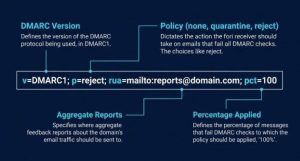
The p tag is the heart of any DMARC record, defining the DMARC policy for your domain. This may be set to:
- none (monitoring) — takes no action, only monitors and reports on authentication checks.
- quarantine — directs receiver to divert suspicious emails (potentially to the spam folder).
- reject — advises outright rejection of failed messages, maximizing phishing protection.
- rua and ruf (Aggregate and Forensic Reports)
- rua specifies the address (rua address) to which aggregate reports (xml reports summarizing email authentication results) are sent. These reports give visibility into how your domain’s emails are being authenticated across different platforms.
- ruf addresses receive failure reports, also known as forensic reports, which deliver detailed incident-based information about individual failed messages.
- pct (Percentage Applied)
The pct tag allows you to apply your DMARC policy to a percentage of your email traffic. For example, pct=50 would apply the DMARC action (quarantine or reject) to only half of the email traffic, facilitating gradual DMARC deployment without disrupting legitimate email delivery.
- adkim and aspf (Identifier Alignment)
- adkim controls DKIM alignment (spanning “relaxed” or “strict” modes), with strict alignment requiring exact domain matches for signing.
- aspf manages SPF alignment in a similar fashion.

Both strict alignment and relaxed alignment determine how closely authenticated identifiers must match the domain in the email’s “From” field, governing how security policies are enforced.
Supplementary Tags and Settings
Additional tags—such as sp (subdomain policy) and fo (forensic options)—are often included by advanced users for more granular control over subdomain policies, reporting intervals, and failure reporting methods. Services like MXToolbox, dmarcian, and Delivery Center provide a DMARC record checker to validate these settings.
How to Use a DMARC Record Generator Step by Step
Why Use a DMARC Record Generator?
A DMARC record generator or DMARC wizard speeds and simplifies the process of creating a valid DMARC record, minimizing human error in DNS TXT record creation and ensuring correct syntax for critical tags such as v=DMARC1 and rua address formatting. Platforms such as dmarcian, EasyDMARC, and MXToolbox offer intuitive tools and even API Reference integrations for bulk or programmatic setups.
Step-by-Step Guide to Generate a DMARC Record
Step 1: Access a Reliable DMARC Record Generator
Utilize a reputable DMARC record generator such as those from MXToolbox, dmarcian, or EasyDMARC. These tools are recognized by Expert Insights, G2 Crowd, and even hold distinctions like Top Performer Award and Momentum Leader.
Step 2: Enter Your Domain and Select Your DMARC Policy
Provide your primary domain in the generator tool. Most generators offer fields to select your DMARC policy—none (monitoring), quarantine, or reject—tailoring initial deployment to your organization’s email authentication maturity level.
Step 3: Configure Reporting
Add the emails for your rua address (to receive aggregate reports) and ruf address (for forensic reports/failure reports). This step is vital for effective DMARC reporting, DMARC compliance monitoring, and leveraging tools like the Forensic Viewer or XML-to-Human converter tool.
Step 4: Specify Advanced Tags
Set the percentage applied (pct) as needed and define your identifier alignment preferences for adkim (DKIM) and aspf (SPF) as strict or relaxed alignment. Advanced configuration options might include subdomain policy and reporting interval. Some tools allow manual edit or preview of the resulting DNS TXT record.
Step 5: Generate and Review the DMARC Record
Click to generate the DMARC record. Review the output, which typically starts with v=DMARC1 and includes all the chosen tags. Ensure your record type is TXT.
Choosing the Right DMARC Policy: none, quarantine, or reject
Understanding DMARC Policy Types
Selecting the correct DMARC policy (p=none, p=quarantine, or p=reject) is critical for secure and effective DMARC deployment.
p=none (Monitoring)
This policy monitors authentication checks and collects DMARC data through aggregate reports and failure reports, but lets all email flow to recipients regardless of validation results. It is essential for initial phases or organizations new to DMARC reporting, allowing you to gather information without impacting email delivery.
p=quarantine
With this setting, emails failing DMARC authentication are diverted (quarantined) to the recipient’s spam or junk folder. It safeguards email security while minimizing risk of blocking legitimate mail, particularly during transitional DMARC deployment stages.
p=reject
This is the most stringent DMARC policy. All email that fails authentication checks is rejected at the gateway—ensuring uncompromising phishing protection and solidifying DMARC compliance. Adopt after thoroughly monitoring DMARC data and confirming all valid senders align with SPF and DKIM records.
Choosing the Best Policy for Your Domain
Begin with p=none and incrementally move towards quarantine or reject as DMARC reporting confirms your legitimate sources’ compliance. Use a dmarcian account or EasyDMARC dashboard for ongoing policy assessment and to review incoming xml reports, forensic reports, and aggregate data.
Publishing, Testing, and Monitoring Your DMARC Record
How to Publish a DMARC Record in DNS
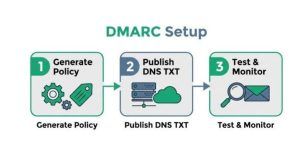
Once you generate DMARC record details with your chosen generator or DMARC wizard, publishing it is straightforward:
- Log in to your DNS host (such as Google Domains, Namecheap, or your provider’s SuperTool).
- Navigate to your domain’s DNS management panel.
- Create a new DNS TXT record at dmarc.yourdomain.com.
- Paste the policy string (e.g., v=DMARC1; p=none; rua=mailto:reports@yourdomain.com; ruf=mailto:forensics@yourdomain.com; pct=100; adkim=r; aspf=s).
Testing and Validating Your DMARC Setup
Run a DMARC check using online tools like the MXToolbox SuperTool, EasyDMARC checker, or dmarcian Email Health tools. These validate syntax, reporting addresses, and ensure that authentication checks via SPF record generator and DKIM are functional.

Ongoing Monitoring and DMARC Reporting
Proper monitoring is essential for sustainable email security:
- Review aggregate reports delivered to your rua address daily or weekly.
- Examine forensic reports (ruf address) for in-depth insights into DMARC failures and identifier alignment issues.
- Use advanced tools—such as dmarcian’s Forensic Viewer, Delivery Center, and XML-to-Human converter tool—to analyze dmarc data efficiently.
- Adjust your DMARC policy, percentage applied, or alignment settings as you achieve comfortable levels of DMARC compliance and email authentication coverage.
Advanced Configuration and Best Practices
For complex domains or those targeted by phishing, consider subdomain policy enforcement, strict alignment combinations for DKIM and SPF, and integration with blacklists or third-party services for threat intelligence. Leverage platforms recognized by Channelprogram, SourceForge, and Bettertracker for robust email security solutions.
DMARC record generators, whether used for manual edit or automated setup, are the foundation for modern email authentication. Proper setup, exhaustive reporting, and continuous policy refinement ensure your organization remains ahead of email spoofing threats while maintaining robust email delivery and trusted communication.