



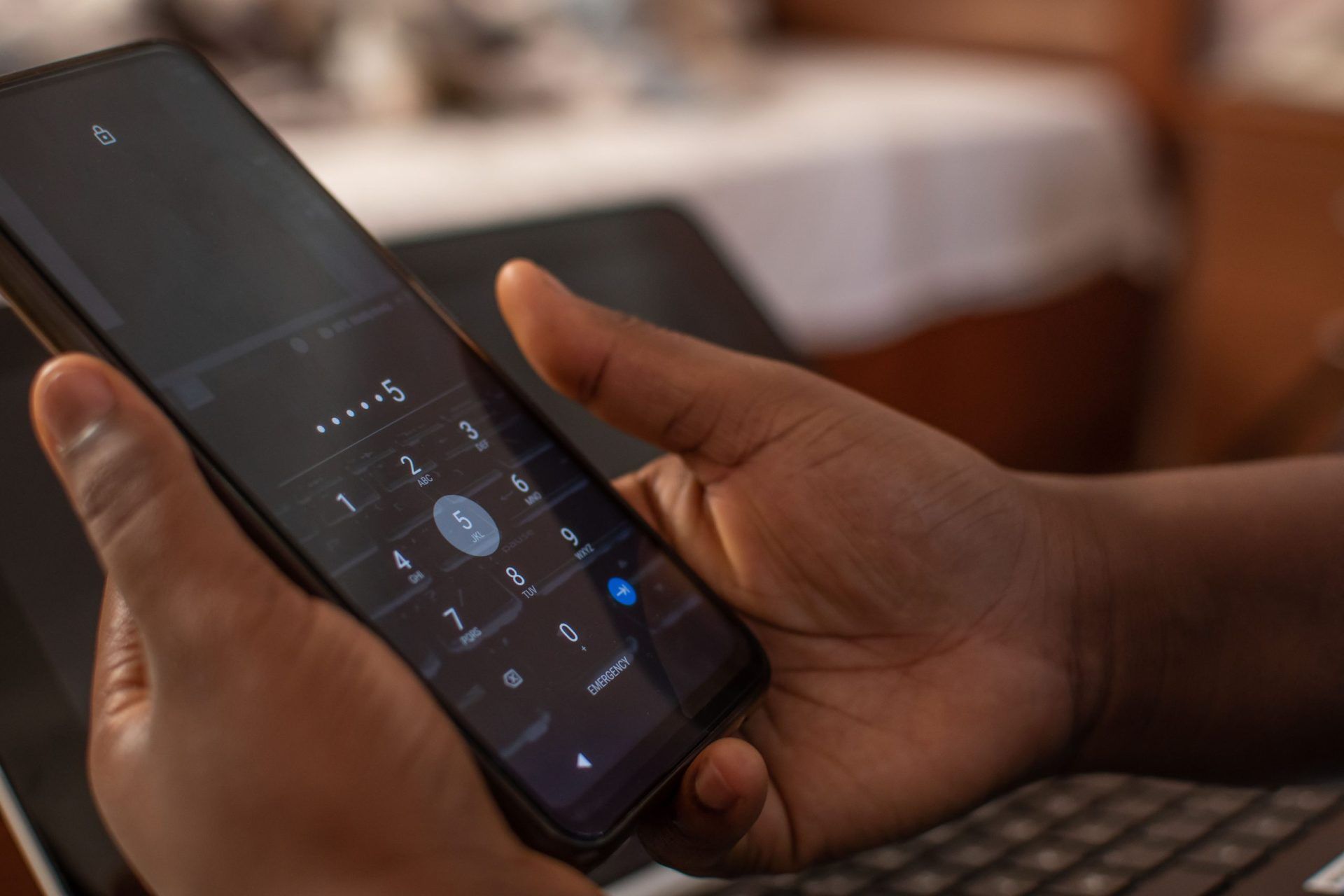
Android devices make up the bulk of mobile phones used, and many mobile phone manufacturers opt for this operating system. The Android OS has several security protocols in place for user information safety. The lock screen is a prominent security feature present in devices.
The screen might lock in situations where the user forgot their password or keyed in the wrong code several times. To safeguard the device, the system will disable it. It is a disappointing situation that many cannot get over.
The good news is that Android lock screen removal is possible with numerous solutions. DroidKit is among the solutions to opt for, and we will guide you on its application for a locked Android screen.
What is DroidKit?
DroidKit is a product under the iMobie umbrella and is the solution to all your Android smartphone problems. Apart from bypassing Android lock screen, this tool will also fix a black or frozen screen, retrieve lost data, upgrade the system, and many more.
It is a must-have utility, especially in a professional setting, ensuring you have all that you need to fix Android issues.
Bypass Android Lock Screen with DroidKit: A Step-by-Step Guide
One of the things to love about iMobie DroidKit is its user-friendliness; anyone can use it, even without sophisticated technical knowledge, as evident from the following user guide.
Step 1: Get DroidKit for Your PC
Download the tool from its authorized website like iMobie. As a new or one-time user, you can go for the free version. However, if you want to be regularly using it or want it for professional applications, you can explore the premium versions, which come with several add-ons.
The utility works with most releases of Windows and Mac. It is also 100% clean and secure, with no chances of it coming with risks like malware.
Step 2: Open DroidKit and Connect Your Android Device
Once successfully installed, you launch it and connect your locked Android device. Make sure that your PC can read your device to adequately work on it adequately. On the tool’s display, select the ‘Screen Unlocker’ option.
The action leads you to another display that presents the various scenarios that the utility can solve regarding screen locks. They include removing all types of passwords, like PINs, patterns, facial recognition, fingerprints, and more.
Press the ‘Start’ button, then click on the ‘Device Connected’ option in a small box that will pop up. The action prompts the preparation of a configuration file. Click ‘Remove Now’ after the configuration file is ready.
Step 3: Put the Device in Recovery Mode
This step requires you to select your device brand and a preferred unlock option. Available unlock modes are Wipe device data and Keep device data. The former is the most recommended, as it works with most phones, while the latter works only with specific older models.
Step 4: Finish the Bypass
Follow the instructions presented on the display to initiate the screen lock removal. It might take some time, so be patient. Once done, you will see the notification, ‘Screen Lock Removal Complete.’ Click the ‘Complete’ button to exit.
Get DroidKit to Shield Yourself from Android Troubles
DroidKit is the ultimate answer to several Android phone troubles, like a locked screen, frozen display, lost files, and a slow device. Download this tool and have it ready for any problems that you may encounter with your Android devices.


