



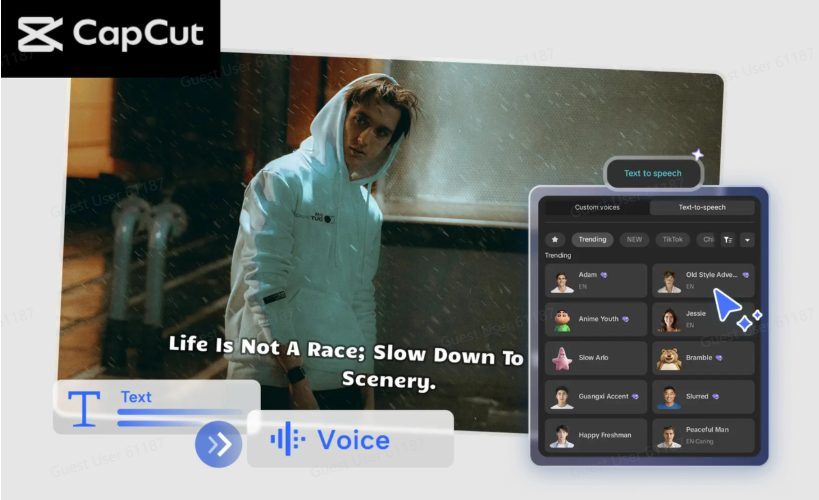
If you want your videos to sound polished, consistent, and truly engaging, CapCut’s Text to Speech AI feature is one of the easiest tools you can use today. With the CapCut Desktop Video Editor, creators, teachers, marketers, influencers, and beginners can instantly turn written text into natural-sounding voiceovers in just a few clicks. This feature is especially useful when you don’t have recording equipment, you’re not confident with your voice, or you simply want to save time. CapCut’s AI-powered voices combine clarity, smoothness, and a realistic tone, making your content feel more professional without extra effort.
It’s no longer enough to rely on visuals alone. Viewers want videos that tell a story, and voiceovers are one of the most effective ways to guide your audience. Text to Speech allows you to add narration to tutorials, explainer videos, slideshows, ads, gaming content, and social media clips—all without needing a microphone. With multiple voice styles, accents, and tones, you can effortlessly match your content’s personality.
Why CapCut Text to Speech Makes Your Content Stand Out
1. Professional-sounding audio without recording
Not everyone has a quiet room, a studio mic, or perfect vocal confidence. CapCut’s AI solves this by generating clean, studio-quality voiceovers instantly. Your videos sound polished even if you’re editing on the go.
2. Dozens of AI voice styles
From cheerful narrators to deep cinematic voices, CapCut gives you a wide library of male and female tones. This variety helps shape the mood of your video—fun, serious, educational, dramatic, or casual.
3. Saves hours of editing time
Recording, re-recording, trimming breaths, and removing noise can take forever. With Text to Speech, you simply type your script, pick a voice, and CapCut does the rest.
4. Perfect for creators who want consistency
When your voice sounds the same in every video, viewers build recognition. AI ensures stable pitch, tone, and clarity every time.
5. Great for accessibility and global reach
Voiceovers help explain visuals clearly, support multilingual content creation, and improve accessibility for viewers with visual impairments.
How to Make Your Content Stand Out with CapCut Text to Speech AI Voices
Step 1: Import your video or script
Begin by launching the CapCut desktop editor on your computer. On the main screen, click “Create project” to start a new edit. Next, use the “Import” option to bring your media files into the editor. You can add clips, images, or slides—anything you plan to narrate over. If you already have your script written, keep it ready in a text file so you can simply copy and paste it into the Text to Speech panel. Having your visuals arranged first helps you create a smooth flow for your voiceover. Try CapCut’s other AI features, such as AI Avatar, AI Video Generator, and BG Remover, to add fun to your content.

Step 2: Generate your AI voiceover
Once your media is on the timeline, click on the Text panel in the left-hand toolbar. Select “Text to Speech” to open CapCut’s voice generation section. Here, paste or type your script into the input box. You’ll now see CapCut’s full library of AI voices, categorized by tone and purpose—narrator, storytelling, character voices, casual, formal, promotional, and more. Choose the voice that best matches the energy of your video. After selecting the style, click “Generate”. CapCut’s AI instantly converts your text into a smooth, natural-sounding audio clip. You can preview it, adjust pauses, fix pronunciation, or generate alternate versions until you’re satisfied. The audio automatically appears in your timeline, perfectly synced and ready to refine.
Step 3: Export and share your polished video
Once your new AI voiceover matches your visuals, it’s time to export. Click the “Export” button in the top-right corner of the screen. Here, you can choose quality settings, frame rate, format, and resolution—CapCut PC supports high-quality outputs suitable for social media, presentations, and professional content. After adjusting your settings, hit “Export” to save the final video to your device. You can also instantly share it to TikTok, YouTube, Instagram Reels, or other platforms directly from CapCut without leaving the editor.
Conclusion
CapCut Text to Speech AI Voices offer one of the easiest and most effective ways to upgrade your content. Whether you’re making tutorials, slideshows, product videos, YouTube Shorts, educational clips, or marketing assets, you can instantly add clean, engaging narration that makes your message clearer and more dynamic. With CapCut PC’s fast processing, diverse voice styles, and intuitive editing tools, turning text into voice has never been easier. If you want your content to stand out in today’s competitive digital world, AI-powered voiceovers are the shortcut to sounding professional—without microphones, studios, or complicated audio tools. CapCut brings it all together in a simple, creative, and beginner-friendly package that helps your videos shine.


