




Having a choppy or lagging video can be distressing, especially if it contains valuable memories. This can disrupt viewing experiences, reduce video quality, and even interfere with professional workflows. If you encounter video lag while playing, it’s important to apply appropriate video repair workarounds immediately.
Fortunately, most causes of video lag are identifiable and can be easily fixed using the combination of online tools, system adjustments, and best practices. In this article, we’ll explore different methods to fix choppy or laggy video files online, along with probable causes and preventive measures. Let’s explore in detail!
Understanding Why Videos Become Choppy
Before jumping into video repair solutions, it’s important to understand why videos lag or appear choppy. Some main reasons for the same include:
- Low Frame Rate: Videos are made up of frames displayed in rapid succession. If a video has a low frame rate (e.g., 15 fps instead of 30 or 60 fps), motion may appear jerky or unnatural.
- High Compression: If you’ve compressed videos too much to reduce file size, their quality may be degraded. This often results in pixelation and stuttered playback.
- Corrupt Video Files: Incomplete downloads, transfer interruptions, or storage issues can also cause video lag and playback problems.
- Codec Issues: A codec is used to encode and decode video files. If your video uses an unsupported or inefficient codec, playback may lag.
- Device Performance: Limitations Older devices or systems with limited processing power may struggle to play high-resolution videos smoothly.
How to Fix Choppy or Lagging Videos Online?
Now that you are familiar with the different causes of your video-related issues, it’s time to apply appropriate fixes. While there are several DIY methods and third-party video repair software available to fix corrupt/damaged/choppy videos, online video repair tools are the best option. Tools like Stellar Repair for Video Online can help you repair damaged video files directly in your web browser, without installing any additional software. This online tool supports repairing videos damaged by issues such as choppy playback, frozen frames, audio-video sync problems, and corrupted headers.
The Stellar Repair for Video Online software is known for several features, including:
- The software supports repairing damaged video files of several file formats, including MP4, MOV, AVI, MKV, FLV, and more.
- It uses a “sample file” (a working video from the same device) to reconstruct damaged data accurately.
- It lets you preview repaired video files before saving them to your device. This ensures the output quality meets your expectations.
- It can repair HD, Full HD, 4K, 8K, and even higher-resolution videos without compromising quality.
- As a web-based solution, it runs directly in your browser without requiring downloads or installations.
Here’s how to fix choppy or lagging video files using this online video repair software:
Step 1: Visit the official website of Stellar Repair for Video Online. Click the Upload Video button, then select the corrupted video file from your computer.


Step 2: Once your video is uploaded, click on the “Start Repair” button. The tool will begin analysing the file for damaged frames, missing data, or encoding problems that cause choppiness.
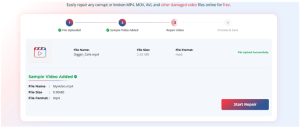

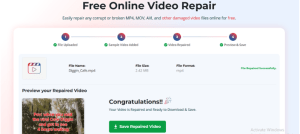
Step 3: After the repair is complete, preview the repaired video files and click Save Repaired Video to download the repaired file to your device.

Other Alternatives to Fix Choppy or Lagging Video Files
Here are some additional video repair methods that you can try to repair your choppy or video lagging issues:
Method 01: Convert Video File Formats
Sometimes converting the video file format can make it compatible with the video player and resolve playback issues. You can use online video converters like Convertio and Zamzar, or tools like VLC Media Player, to change your video’s file format. To change your video format using VLC player:
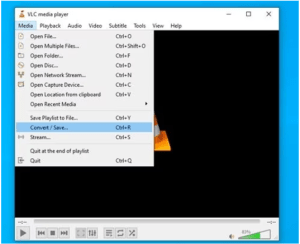

- Launch VLC Media Player, click Media, then select Convert/Save.
- Now, click Add, upload the video file you need to repair, and then press Convert/Save to continue.
- In the Profile section, select the desired output format, such as MP4, AVI, or MKV, from the dropdown menu.
- Click Browse to choose where to save the converted video.
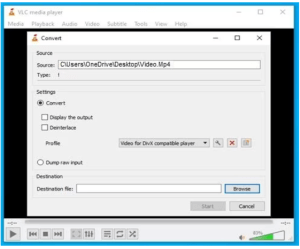

- Lastly, click Start to begin the conversion process, and wait until it completes successfully.
Once done, play the converted file and check if it plays smoothly.
Method 02: Clear Browser Cache and Cookies
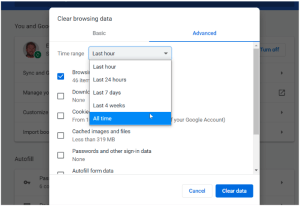
If you are experiencing choppy video or lag while streaming online, clearing your browser’s temporary and cache files might help. You can do this by going to the settings of whichever browser you are using.
To clear browser cache & cookies on Chrome:
- Launch the Google Chrome browser on your device.
- Go to Settings > Advanced > Privacy and security.
- Click on Clear browsing data.

Method 03: Reduce Video Resolution
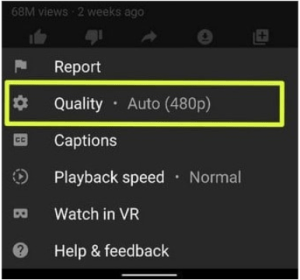
High-resolution videos (like 4K) can lag on slower devices or networks. Lower resolution reduces processing demand, making playback smoother. You can follow the below steps to reduce your video resolution using an online video editor:
- Open a browser and upload your video that is lagging or choppy to an online editor.
- After the video loads, select the lower-resolution option (e.g., 1080p or 720p) based on your needs.
- Once you’ve selected the desired resolution, click on the “Export,” “Render,” or “Convert” button.

Method 04: Update Your Computer Drivers
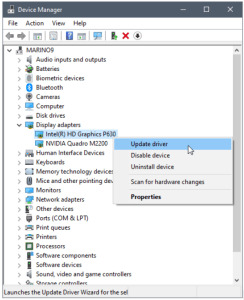
Outdated computer drivers can lead to performance issues, including choppy video playback. You can update your drivers to ensure your hardware runs smoothly and efficiently, improving video performance. All you have to do is:
- Right-click the Start icon from the taskbar and select Device Manager.
- Click on “Display adapters.”
- Right-click on the specific device you want to update.
- Choose “Update Driver” from the context menu.

Final Thoughts
If your video file is choppy or lagging, try the fixes above one by one to resolve the issue. With the wide range of online tools available today, most issues—from low frame rates to corrupted files—can be fixed quickly and effectively without installing any software. By understanding the root causes and applying the right solutions—such as adjusting frame rates, converting formats, optimising bitrate, and repairing files with online video repair tools—you can restore smooth playback and enhance video quality.


