



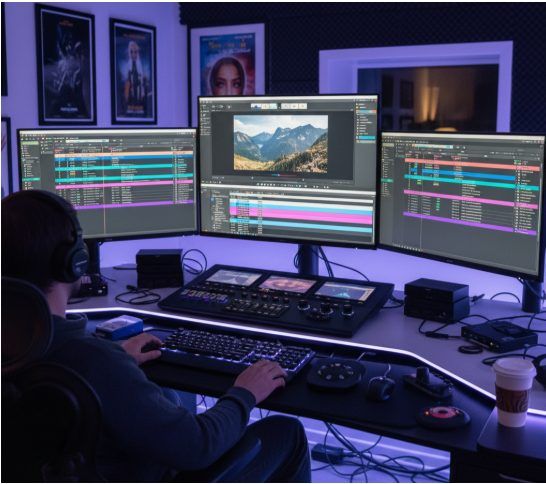
How do you remove unwanted objects (like cars, people, or logos) that suddenly appear in the middle of a perfect video shot? This is a very common problem, and you can easily fix it using video editing tools like gstory ai video editor. In this guide, we’ll learn step-by-step how to remove unwanted objects from videos using simple methods like masking, tracking, and content-aware fill.
When to use which method?
Masking and Tracking: This is most effective for removing moving objects (like people walking, moving cars).
Content-aware Fill: This is quick and easy for removing stationary or small objects (like logos on walls, reflections on glass).
Frame Hold: If the object is visible for a very short time, you can freeze a clear frame to cover the problem area.
Step-by-step guide to removing objects with masking and tracking
Step 1: Find a clean frame
First watch the video and find a frame that doesn’t have the unwanted object. You’ll use that clean frame later.
Step 2: Create a patch
Make a copy of your video layer. This copy will be your “patch” layer. You’ll use the clean frame to cover up the problematic area later.
Step 3: Draw a mask
On your patch layer, draw a shape or mask around the unwanted object. Feather the edges of the mask so it blends in naturally.
Step 4: Track the motion
Use your software’s motion tracker to make the mask move with the object’s movement. This will ensure that the mask covers the object the entire time the video is playing.
Step 5: Refine and blend
Even after perfect tracking, some frames may require manual adjustments. If the mask moves slightly or the patch looks unnatural, fix it by keyframing it manually. Preview the entire clip to make sure there are no flickering, color mismatches, or hard edges on the mask.
Quick Fix: Content-Aware Fill
If you’re using advanced software like Adobe After Effects, the Content-Aware Fill will work like magic.
- Draw a mask around the unwanted object.
- Click the Content-Aware Fill option.
- The software will automatically remove the object and fill it in with the surrounding background.
- Finally, render and check the video.
Special Tips for Best Results
Soft Edges: Don’t make the edges of the mask too hard. Feathering them will make it look more natural.
Match Motion Blur: If the original video has motion blur, try adding a similar blur to your patched area.
Practice: Start with small and simple objects, then gradually work on more complex objects.
Ethical and legal aspects
Never remove watermarks or logos from other people’s videos. This is unethical and punishable by law. Only use these methods to remove objects from videos you have shot yourself or licensed stock footage with the help of a reliable watermark remover when necessary.
Last Words
Removing unwanted objects from videos may seem complicated at first, but with the right tools and a little patience, you can easily get professional-quality results. Learn masking and content-aware fills. These two skills are very useful for any video editor.
How to Remove Unwanted Objects from Videos: A Step-by-Step Guide
How do you remove unwanted objects (like cars, people, or logos) that suddenly appear in the middle of a perfect video shot? This is a very common problem, and you can easily fix it using video editing tools like gstory ai video editor. In this guide, we’ll learn step-by-step how to remove unwanted objects from videos using simple methods like masking, tracking, and content-aware fill.
When to use which method?
Masking and Tracking: This is most effective for removing moving objects (like people walking, moving cars).
Content-aware Fill: This is quick and easy for removing stationary or small objects (like logos on walls, reflections on glass).
Frame Hold: If the object is visible for a very short time, you can freeze a clear frame to cover the problem area.
Step-by-step guide to removing objects with masking and tracking
Step 1: Find a clean frame
First watch the video and find a frame that doesn’t have the unwanted object. You’ll use that clean frame later.
Step 2: Create a patch
Make a copy of your video layer. This copy will be your “patch” layer. You’ll use the clean frame to cover up the problematic area later.
Step 3: Draw a mask
On your patch layer, draw a shape or mask around the unwanted object. Feather the edges of the mask so it blends in naturally.
Step 4: Track the motion
Use your software’s motion tracker to make the mask move with the object’s movement. This will ensure that the mask covers the object the entire time the video is playing.
Step 5: Refine and blend
Even after perfect tracking, some frames may require manual adjustments. If the mask moves slightly or the patch looks unnatural, fix it by keyframing it manually. Preview the entire clip to make sure there are no flickering, color mismatches, or hard edges on the mask.
Quick Fix: Content-Aware Fill
If you’re using advanced software like Adobe After Effects, the Content-Aware Fill will work like magic.
- Draw a mask around the unwanted object.
- Click the Content-Aware Fill option.
- The software will automatically remove the object and fill it in with the surrounding background.
- Finally, render and check the video.
Special Tips for Best Results
Soft Edges: Don’t make the edges of the mask too hard. Feathering them will make it look more natural.
Match Motion Blur: If the original video has motion blur, try adding a similar blur to your patched area.
Practice: Start with small and simple objects, then gradually work on more complex objects.
Ethical and legal aspects
Never remove watermarks or logos from other people’s videos. This is unethical and punishable by law. Only use these methods to remove objects from videos you have shot yourself or licensed stock footage with the help of a reliable watermark remover when necessary.
Last Words
Removing unwanted objects from videos may seem complicated at first, but with the right tools and a little patience, you can easily get professional-quality results. Learn masking and content-aware fills. These two skills are very useful for any video editor.


