



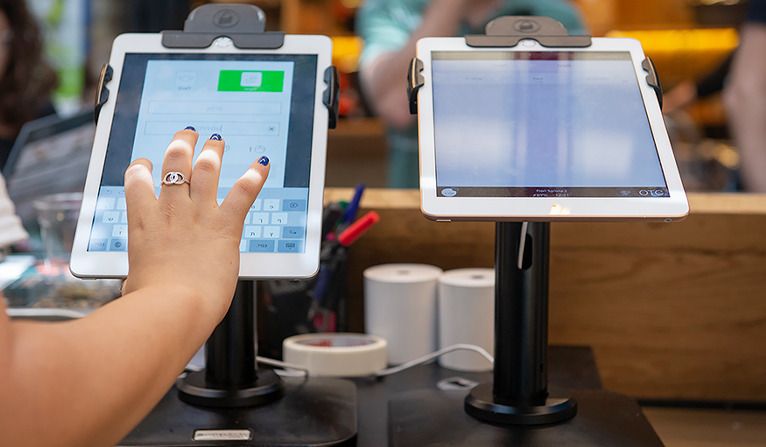
In today’s digital-first world, event organizers are turning to sleek, modern solutions to enhance guest experiences and streamline interactions. One of the most effective tools for achieving this is the iPad kiosk. Whether it’s for event check-in, product demos, lead generation, or interactive displays, using iPads as kiosks offers a flexible, professional, and cost-effective way to elevate any event.
Why Use iPads as Kiosks?
iPads are lightweight, visually appealing, and incredibly user-friendly. Their portability and high-resolution touchscreens make them ideal for quick interactions, especially in fast-paced environments like trade shows, exhibitions, corporate conferences, and public expos. With the right setup and apps, they can operate in kiosk mode, turning the device into a single-purpose, secure digital station that meets your event goals.
Key Benefits:
- Portability and sleek design
- Cost-effective compared to custom hardware
- Easy to manage and deploy
- Highly customizable for various use cases
Setting Up an iPad Kiosk
Setting up an iPad as a kiosk involves configuring the device to run a specific app or set of functions, restricting user access to other parts of the operating system. Here’s how to do it:
1. Enable Guided Access (for simple use cases)
Guided Access is a built-in iOS feature that restricts the iPad to a single app and disables certain hardware buttons.
Steps:
- Go to Settings > Accessibility > Guided Access
- Toggle on Guided Access
- Set a passcode for control
- Launch your desired app and triple-click the Home or Power button to activate Guided Access
This is perfect for smaller events or single-use apps like check-in forms or surveys.
2. Use Single App Mode (for enterprise-level control)
If you’re managing multiple kiosks across an event or require deeper restrictions, Single App Mode offers a more advanced option. This feature is typically enabled via a Mobile Device Management (MDM) system, which locks the iPad into one specific app, even after restarts.
Popular MDM platforms include:
- Jamf
- Hexnode
- Mosyle
- Kandji
These platforms allow remote configuration, app deployment, and device monitoring — ideal for large-scale event deployment.
Top iPad Kiosk Apps for Events
Choosing the right software is just as important as the hardware setup. The best apps offer customization, branding options, offline functionality, and data collection features.
Recommended Apps:
- Eventbrite Organizer / Check-in Apps
Ideal for managing guest lists and scanning tickets at the door.
- Kiosk Pro
Turns your iPad into a web-based kiosk. Great for interactive catalogs, surveys, or digital signage.
- QuickTapSurvey
Perfect for lead capture and attendee feedback, even offline.
- Forms by Zoho or Google Forms (in Safari Kiosk Mode)
Lightweight solutions for quick data collection.
- Hexnode Kiosk Browser
Offers enhanced browsing restrictions and remote control, perfect for demo stations.
Best Practices for a Successful iPad Kiosk Deployment
To ensure your iPad kiosks run smoothly throughout the event, follow these key practices:
1. Use Secure Mounts and Stands
Invest in locking enclosures or stands to prevent theft or tampering. Look for models with adjustable angles and built-in cable management.
2. Power Management
Ensure continuous power supply. Use power banks or floor chargers to keep iPads running all day. Hide cables neatly to prevent trip hazards.
3. Test Thoroughly
Pre-configure and test each device before the event. Simulate user interactions to make sure the flow is intuitive and glitch-free.
4. Brand the Interface
Use your event’s logo, colors, and messaging in the app interface to maintain brand consistency and enhance user engagement.
5. Plan for Internet Needs
While many apps work offline, some require active connections for syncing. Use secure Wi-Fi or ensure offline capabilities are properly configured.
6. Assign Onsite Support
Have a tech-savvy staff member on-site to monitor kiosks and quickly resolve issues if they arise.
Real-World Use Cases
- Trade Shows: iPads at booths collect lead information, display product videos, and sign up users for newsletters.
- Corporate Events: Used for session check-ins, personalized agendas, or attendee networking portals.
- Weddings and Private Parties: iPads can serve as digital guestbooks, photo booth galleries, or seating charts.
- Museums and Exhibitions: Offer self-guided tours and interactive learning tools.
Conclusion
Using iPads as kiosks at events is a powerful way to digitize interactions, collect data, and streamline operations — all while maintaining a modern, professional appearance. With thoughtful setup, the right software, and best practices in place, your iPad kiosks can significantly enhance the attendee experience and make your event run more efficiently.
From check-ins to interactive displays, the possibilities are endless — and all at your fingertips.


