


Have you ever wanted to create stunning digital art but felt held back by a lack of traditional skills or complex software? You’re not alone. Many people dream of bringing their visual ideas to life but don’t know where to start. The good news is that you no longer need expensive tools or years of training. Thanks to AI, anyone can become a digital artist right from their web browser.
This guide will walk you through everything you need to know to create unique AI artwork online. We’ll cover the entire process, from crafting the perfect text description to refining your final image. By the end, you’ll be able to generate incredible visuals with just a few clicks, no technical setup required.
How to Create AI Art: A Step-by-Step Guide
Creating AI art is a straightforward process that combines your imagination with powerful algorithms. It all starts with a text prompt, which is a simple description of the image you want to create. The AI then interprets your words and generates a unique piece of art based on your instructions. Follow these steps to get started.
Step 1: Find an Online AI Art Tool
The first step is to choose a web-based platform. These tools handle all the complex processing on their servers, so you don’t need a powerful computer or any special software. You just need an internet connection and a web browser. A great place to begin is with a user-friendly and powerful Free AI Image Generator Online. These platforms are designed to be intuitive, allowing you to focus on your creative vision instead of technical hurdles.
Step 2: Write a Detailed Text Prompt
The text prompt is the most important part of the process. It’s your direct instruction to the AI. A vague prompt will lead to a generic or confusing image, while a detailed prompt will produce something much closer to your vision. Think about the subject, the setting, the style, and the mood you want to convey.
For example, instead of writing “a dog,” try something more descriptive like, “a golden retriever puppy wearing a tiny red superhero cape, sitting in a sunlit field of wildflowers, cinematic lighting.” The extra details give the AI much more information to work with, resulting in a richer and more compelling image.
Step 3: Choose Your Style and Aspect Ratio
Most online AI generators allow you to select a specific artistic style. This helps guide the AI toward a particular aesthetic. Common styles include photorealistic, anime, fantasy, cyberpunk, cartoon, and abstract. Choosing a style ensures your artwork has a consistent and professional look.
You should also select an aspect ratio. This determines the shape of your image. A 1:1 ratio creates a perfect square, which is great for profile pictures. A 16:9 ratio is a widescreen format ideal for desktop wallpapers, while a 9:16 ratio is a vertical format perfect for phone backgrounds or social media stories.
Step 4: Generate and Refine Your Artwork
Once you have your prompt and settings ready, click the “Generate” button. The AI will take a few moments to process your request and create an image. Don’t worry if the first result isn’t perfect. Creation is an iterative process. You can refine your prompt, try a different style, or generate a new variation.
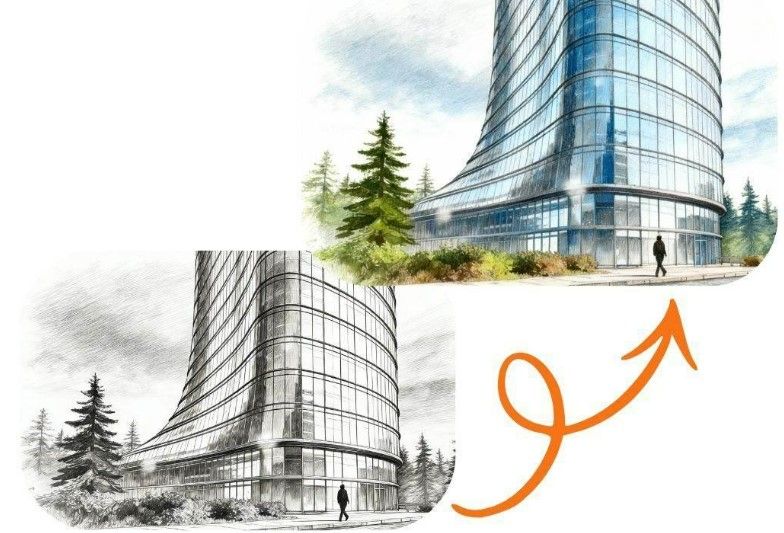
You can also use your generated image as a starting point for a new creation. Many platforms offer tools like a free image to image generator, which lets you upload a picture and modify it with a text prompt. This is a powerful way to make precise adjustments or completely transform an existing visual.
Step 5: Download and Share Your Creation
When you’re happy with your artwork, the final step is to download it. Most online generators provide a high-resolution download option. You can then share your masterpiece with friends, use it on social media, print it out, or incorporate it into your personal or professional projects. You own the art you create and are free to use it as you wish.
Tips for Creating Better AI Art
Getting great results from an AI art generator is a skill that improves with practice. Here are some tips and best practices to help you master the craft of prompt writing and image generation.
Be Specific and Descriptive
Details are your best friend. The more specific your prompt, the better the AI can understand your intent. Think like a director setting a scene.
* Subject: Who or what is the focus? (e.g., “an ancient wizard with a long white beard”)
* Action: What is the subject doing? (e.g., “casting a glowing blue spell”)
* Environment: Where is the scene taking place? (e.g., “in a dimly lit library filled with floating books”)
* Lighting: What is the mood and light source? (e.g., “dramatic, volumetric lighting from a single candle”)
* Composition: How is the shot framed? (e.g., “close-up shot, looking up from a low angle”)
Use “Magic Words” to Enhance Quality
Certain keywords can significantly influence the quality and style of your generated image. Artists and AI enthusiasts often call these “magic words” because of their powerful effect. Including them in your prompt can push the AI to produce more detailed and professional-looking results.
| Keyword Category | Example Keywords |
| Quality & Detail | highly detailed, intricate, 8k, sharp focus, professional photography |
| Art Mediums | oil painting, watercolor, pencil sketch, digital art, 3D render |
| Rendering Engines | Unreal Engine, Octane Render, V-Ray |
| Camera & Lenses | DSLR, 50mm lens, wide angle, macro shot, cinematic |
| Artist Styles | in the style of Van Gogh, by Greg Rutkowski, by Alphonse Mucha |
Master Negative Prompts
A negative prompt tells the AI what *not* to include in the image. This feature is incredibly useful for removing unwanted elements and fixing common AI mistakes. For instance, AI models sometimes struggle with drawing hands correctly. You can add “extra fingers, deformed hands” to your negative prompt to improve the results.
Common negative prompts include:
* `blurry, grainy, low resolution`
* `ugly, disfigured, deformed`
* `watermark, text, signature`
* `poorly drawn, bad anatomy`
Iterate and Experiment
Your first attempt will rarely be your last. Treat AI art generation as an experiment. If you don’t like the output, change one variable at a time. Modify the prompt, switch the style, or adjust a keyword. Each generation gives you a new idea. Sometimes, the AI’s “mistakes” can even inspire a completely new creative direction.
Common Mistakes to Avoid
As you begin your journey, you might run into a few common issues. Here are some mistakes to watch out for and how you can avoid them.
Mistake 1: Vague or Contradictory Prompts
A prompt like “fantasy world” is too broad. The AI has no specific subject or composition to focus on. Similarly, a prompt like “a photorealistic cartoon” is contradictory and will confuse the AI. Always aim for clear, coherent, and descriptive prompts.
Mistake 2: Ignoring Negative Prompts
Many beginners overlook the negative prompt field. This often leads to images with strange artifacts, distorted features, or other unwanted elements. Using a basic set of negative prompts from the start can dramatically improve the quality of your generations and save you a lot of time.
Mistake 3: Giving Up After One Try
It’s easy to get discouraged if your first image doesn’t match your vision. Remember that prompt crafting is a skill. The best AI artists run dozens of generations, constantly tweaking and refining their prompts until they get the perfect result. Embrace the process of iteration.
Mistake 4: Forgetting to Set the Aspect Ratio
If you generate an image for your phone wallpaper but forget to set the aspect ratio to 9:16, you’ll end up with a square or landscape image that doesn’t fit properly. Always consider the final use case for your artwork and set the aspect ratio before you start generating.
Conclusion
Creating unique AI artwork online has never been more accessible. With no setup required, you can jump right into bringing your most imaginative ideas to life. The key to success lies in crafting detailed prompts, choosing the right styles, and embracing an iterative creative process. By following the steps and tips in this guide, you’ll be well on your way to generating breathtaking images that are uniquely yours.
So what are you waiting for? Open a generator, start writing your first prompt, and see what incredible worlds you can create.


