



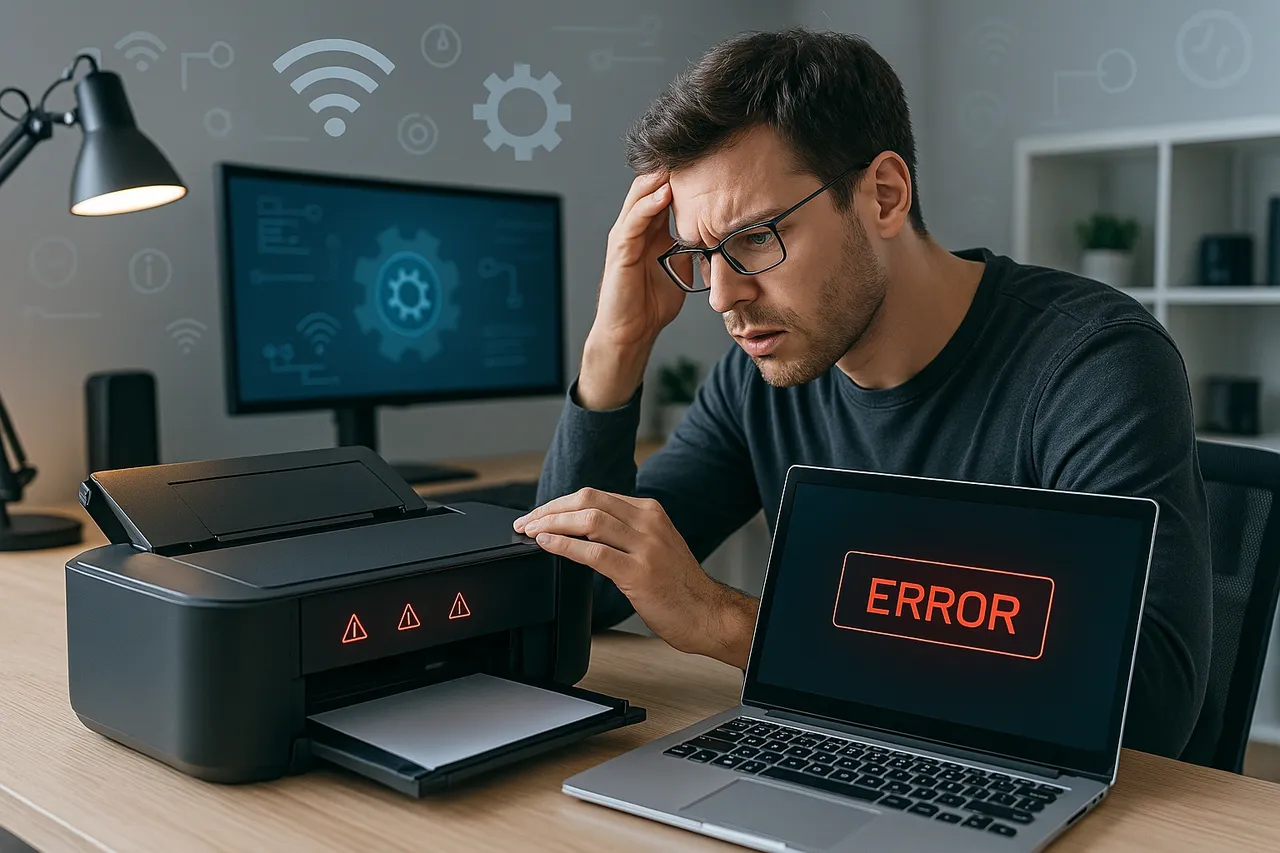
Before you print, make sure your printer can work with many devices. Today’s wireless printers are best. They connect using Wi-Fi, not cables. This makes it easy to print from phones, tablets, or computers. Choose a printer that supports Wi-Fi Direct, AirPrint, or Google Cloud Print. These features help devices talk to the printer without extra setup.
Check for Wi-Fi Connection
Your device and printer must share the same Wi-Fi network. This step is key. If they are not on the same network, they will not find each other. Go to settings on your phone or laptop and double-check. If your printer supports mobile apps, like HP Smart or Canon PRINT, install them. These apps help with setup and make printing smoother.
Use Built-in Print Features
Most modern devices have built-in print options. On iPhones or iPads, you can use AirPrint. Just tap the share icon and then “Print.” On Android phones, use the “Print” option in the settings or app menu. Windows and Mac computers also have print functions in their file menus. These tools help you print with just a few taps or clicks.
Install the Printer App
Printer apps can make life easier. Brands like Epson, Brother, and Canon offer free apps. These apps help you manage the printer. You can scan, copy, and check ink levels. They also show printer errors and offer fixes. Make sure to download the right app for your brand.
Print from the Cloud
Cloud printing is great when you are not near the printer. You can send a file to print from your phone, even if you’re in a different room. Google Drive and Dropbox support this. Just open the file, press “Print,” and choose your printer. Some printers let you email a document to them. Check your printer’s manual for the setup steps.
Use a USB Connection as Backup
If Wi-Fi is not working, a USB cable helps. Most printers have a USB port. Plug the cable into your laptop. Then, the computer should detect the printer. Install drivers if needed. This way, you can still print without using the internet.
Print from Tablets and Smartphones
Phones and tablets can print like laptops. Open your photo or document. Tap the share icon, then “Print.” If the printer doesn’t show up, open the printer app. Apps let you choose settings like paper size and quality. With these tools, printing from a mobile device is simple.
Try Universal Print Services
Universal print tools work with many brands. For example, Mopria Print Service for Android works with most printers. It finds printers on your Wi-Fi network and helps send files. These tools cut down on setup steps. They are also useful if you often switch devices or printers.
Fix Common Problems Fast
Sometimes things go wrong. Maybe your printer is offline or not found. First, restart the printer and your device. Then check the Wi-Fi again. If the print job is stuck, cancel it and try again. Use the printer app to see any errors. Many issues can be fixed with a quick restart or a new connection.
Print Securely at Work or in Public
When using public printers, be careful. Do not send private files over shared Wi-Fi. Use password-protected networks if possible. Some printers let you enter a code to release the print job. This keeps your info safe like this fun website https://www.stellarspins.fun/en/online-pokies.
Keep Printer Software Updated
Check for updates on your printer’s software. Updates fix bugs and improve how your printer works. Use the app or visit the printer brand’s website. Updating can also add new features like faster printing or better quality.
Print on the Go with Email Printing
Some printers let you send an email to them. This means you can print from anywhere. You just email the file to the printer’s unique email address. Check your printer’s manual for this feature. It’s handy when you travel or work from many places.
Use Bluetooth When Available
Bluetooth is another way to connect. If your printer supports it, turn on Bluetooth on both the printer and your phone or laptop. Then pair the devices. This option is useful when Wi-Fi is not available. It also saves time during setup.
Set Your Default Printer
Set your favorite printer as default. This saves time. On your computer or phone, go to settings and select the main printer. Then, each time you press “Print,” the system will pick that printer first. This makes printing faster and more consistent.
Try PDF Files for Easy Printing
PDF files are easy to print. They keep the layout and are supported by all printers. When saving a file, choose “Save as PDF.” Then print it. This avoids layout issues. It’s also great for sending files to others who need to print them.
Closing Words
Printing from any device can be easy. You don’t need to be a tech expert. Just follow simple steps. Use apps, check Wi-Fi, and try built-in print tools. With the right setup, printing becomes quick and smooth. Whether you’re printing at home, work, or on the go, these tips will help you get the job done without stress.


